Overview
This article explains how to update your payment method in Stripe through ATLAS chat, and to add new licenses through Stripe if all licenses are used.
This article applies only to customers whose StreetSmart subscription is billed through Stripe.
Prerequisites
- You have an Admin or Super User role on your StreetSmart account.
- Your StreetSmart subscription is billed through Stripe.
Solution
- Sign in to the StreetSmart HelpCenter.
- Open ATLAS.
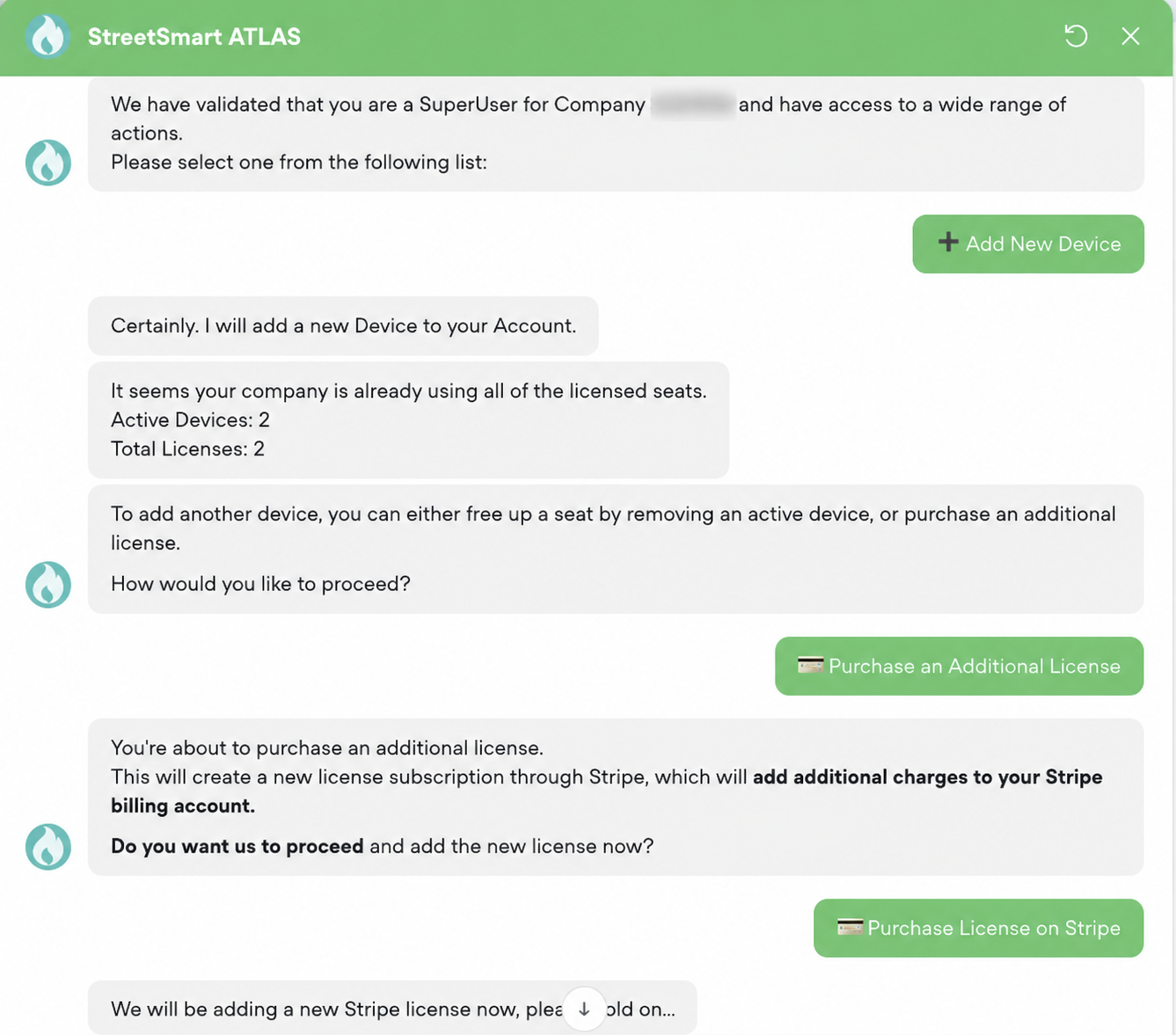
- Choose Add New Device.
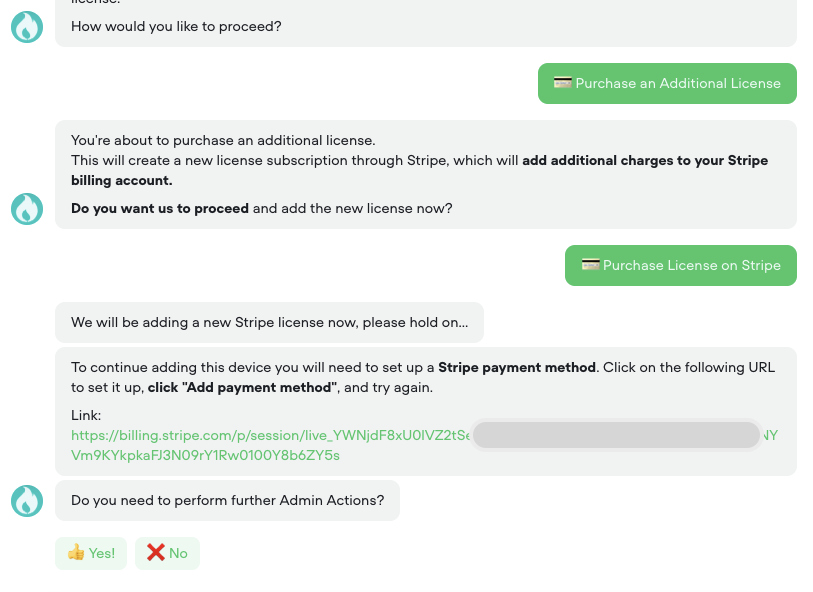
- If ATLAS tells you that all of your licensed seats are already in use, choose Purchase an Additional License.
- Choose Purchase License on Stripe.
- If ATLAS provides a Stripe link to set up billing, open that link.
- On the Stripe page, click Add payment method and save your payment details.
- Return to ATLAS and retry the device or license action.
If you no longer need one of your active devices, you can remove that device instead of purchasing another license.
If ATLAS does not show this option, or if it cannot complete the request, please create a support ticket.
Testing
After you complete the Stripe step, return to ATLAS and retry your request.
If ATLAS still cannot complete the action, create a support ticket and include your:
- Company name
- Company ID
- Phone number(s) you want to add
Raymond Guirguis
Comments